How Multilingual Teams Set Up Messaging Apps Across Windows and Mobile
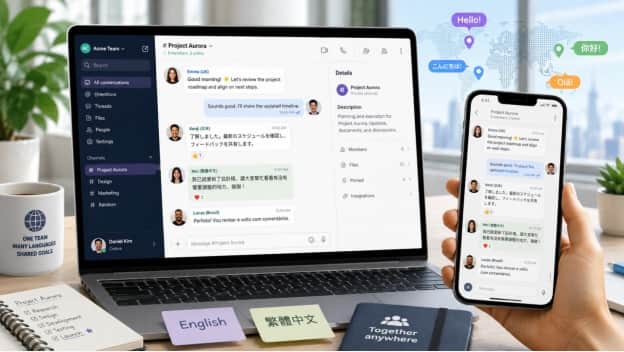
Multilingual teams often face communication problems that go beyond translation.
A messaging platform may work perfectly on one device while showing different menu labels, notification options, or interface behavior on another. A Windows desktop app may follow the operating system language, while a mobile app may use its own language preference. Some team members may work in English, others in Traditional Chinese, and others may switch between languages depending on the task.
For distributed teams, these differences can create unnecessary friction during onboarding, troubleshooting, and everyday collaboration.
A better approach is to treat language configuration as part of the overall messaging setup. That means choosing the correct desktop version, understanding how interface language works across devices, and making sure team members can move between Windows and mobile without constantly relearning where settings are located.
Why Interface Language Matters More Than It Seems
Language settings may look like a minor preference, but they can affect how confidently people use a communication tool.
Consider a new team member trying to complete basic tasks such as:
· changing notification preferences;
· reviewing privacy options;
· joining a group;
· finding downloaded files;
· managing connected devices;
· enabling additional account security.
If the interface is displayed in an unfamiliar language, even simple actions can take longer.
This becomes more important when a team maintains internal documentation or onboarding instructions. A guide written using English menu names may be difficult to follow if a user's application displays Traditional Chinese terminology instead.
For multilingual organizations, interface consistency can therefore improve more than convenience. It can reduce support requests and make internal processes easier to standardize.
Windows and Mobile Apps May Handle Language Differently
One common mistake is assuming that language settings behave identically on every platform.
In reality, desktop and mobile applications may use different rules.
A Windows application may determine its interface language from:
· the Windows display language;
· the regional settings of the computer;
· an application-specific language option;
· the language used during installation.
A mobile application may instead follow:
· Android system language;
· iOS language preferences;
· per-app language settings;
· account-level preferences.
This means a user could potentially have an English interface on a Windows laptop and a Chinese interface on a phone, even though both devices use the same account.
That is not necessarily a problem. Some people intentionally use different languages on different devices. But for teams that want consistent training materials and workflows, it is worth understanding how each platform behaves.
Choose the Correct Desktop Version Before Configuring Language
Before changing language settings, users should first make sure they are working with the correct desktop client.
Windows users should confirm:
· whether the computer runs Windows 10 or Windows 11;
· whether the system uses a supported architecture;
· whether sufficient storage is available;
· whether the installer is intended for desktop use;
· whether company security policies restrict software installation.
Downloading the wrong version can lead to unnecessary troubleshooting later.
Language configuration cannot fix compatibility problems caused by an unsupported operating system or an incorrect installer.
For this reason, installation and localization should be treated as two stages of the same process:
First choose the correct Windows version. Then configure the interface for the user's preferred language.
Setting Up a Chinese-Friendly Desktop Experience
Chinese-speaking users often want the desktop application to match the language they already use on mobile. When researching setup options, users may review a /telegram 中文版下载 resource as part of comparing desktop installation and Chinese-language configuration information.
After installation, the next step is to review the application's language or appearance settings.
Depending on the software, the option may appear under sections such as:
· Settings;
· Language;
· General;
· Appearance;
· Interface;
· Preferences.
If no language selector appears, the application may be following the Windows system language instead.
In that case, users should check their operating system settings before assuming that the desktop client does not support the desired interface.
The goal should be a predictable experience rather than simply changing individual labels. Users should be able to identify important menus such as security, notifications, downloads, privacy, and connected devices without confusion.
Chinese Interface vs. Chinese Content
It is also useful to separate two different concepts: interface language and message content.
A messaging application can display Chinese conversations even if the interface itself is in English. Likewise, a Chinese interface does not change the language other people use in messages.
This distinction matters because users searching for a "Chinese version" may actually be looking for several different things:
· a Chinese user interface;
· support for Chinese text input;
· Chinese-language setup instructions;
· a Windows version suitable for Chinese-speaking users;
· localized menus and settings.
Understanding the difference helps teams provide better internal guidance.
Instead of telling employees to "install the Chinese version," documentation can be more precise:
- install the correct Windows client;
- sign in;
- open language settings;
- select the preferred interface language;
- confirm that menus and notifications display correctly.
This reduces ambiguity.
Keep Desktop and Mobile Settings Consistent
Once the language configuration is working on Windows, users should compare it with their mobile devices.
A few settings are particularly useful to review.
Notification behavior
The desktop and mobile applications may generate alerts independently.
If every message triggers a notification on both devices, users may experience unnecessary duplication.
Teams can decide whether:
· desktop alerts should be primary during working hours;
· mobile alerts should remain active for urgent messages;
· large groups should be muted;
· notifications should display message previews.
Chat organization
Folders, pinned conversations, archived chats, and group organization may not always behave exactly the same way on every platform.
Users should confirm whether their preferred organization method is synchronized.
Download behavior
A mobile device may automatically download images while a desktop computer saves files only when requested.
These differences are important for storage management.
Privacy preferences
Desktop and mobile sessions should also be reviewed separately for:
· active devices;
· session history;
· passcode locks;
· account security;
· privacy permissions.
Multilingual teams often focus on language settings first, but a consistent cross-device workflow also depends on these operational details.
Build Internal Documentation Around Actions, Not Only Menu Names
One of the easiest ways to support multilingual teams is to write internal setup instructions that do not rely exclusively on exact menu labels.
Instead of saying: Click "Settings," then "Advanced," then "Downloads."
A better internal guide might say: Open the application's settings area, locate the file or storage section, and confirm where desktop downloads are saved.
This type of instruction remains useful even if menu names change after an update or appear differently in another language.
Screenshots can also help, but they should be updated when the interface changes.
A practical multilingual onboarding guide might include:
· the purpose of each setting;
· screenshots of important screens;
· English and Chinese terminology where useful;
· platform-specific notes for Windows and mobile;
· troubleshooting steps.
This approach is more durable than building documentation around one exact interface version.
Common Localization Problems on Desktop
Even when an application supports multiple languages, users can still encounter small issues.
The application stays in English
This may happen because:
· the desktop app follows Windows language settings;
· the application has not been restarted;
· the selected language was not saved;
· the installed version handles localization differently.
Checking both application and operating-system settings usually helps narrow down the cause.
Some menu items appear in another language
Applications sometimes introduce new features before every translation is fully updated.
A mostly Chinese interface may therefore contain occasional English labels after a major update.
This does not automatically indicate an installation problem.
Language settings reset after an update
Major software updates can occasionally change preferences.
If language settings unexpectedly change, users should review the interface configuration again before reinstalling the application.
Desktop and mobile terminology differs
Even when both interfaces use Chinese, translations can vary between platforms.
This is another reason internal documentation should explain the purpose of a feature rather than relying only on exact wording. Chinese-speaking teams can also keep a telegram 中文设置 reference in their onboarding notes so users can quickly locate language-related setup guidance.
Consider Traditional and Simplified Chinese Requirements
For teams operating across Hong Kong, Taiwan, Singapore, mainland China, or international markets, "Chinese interface" may still be too broad a requirement.
Users may prefer:
· Traditional Chinese;
· Simplified Chinese;
· English;
· a combination of English and Chinese depending on the device.
Internal documentation should therefore avoid assuming that one Chinese localization works equally well for everyone.
A team in Taiwan may prefer Traditional Chinese terminology, while another group may use English on desktop because most of its technical documentation is written in English.
The best setup is the one that reduces friction for the people actually using the tool.
Test the Workflow After Configuration
After the desktop client has been installed and the preferred language selected, users should test several everyday actions.
For example:
- send and receive a direct message;
- open a group conversation;
- upload a document;
- download a file;
- change a notification setting;
- locate privacy options;
- review connected devices;
- switch between desktop and mobile.
These simple tests confirm that the user understands the interface before relying on it during important work.
They can also reveal differences between desktop and mobile versions that should be documented for the rest of the team.
Avoid Overcomplicating the Setup
Multilingual teams sometimes create complicated onboarding procedures because they are trying to account for every possible device and language combination.
That can make the process harder than necessary.
A more effective model is to standardize only the parts that truly matter.
For example:
Standardize:
· supported operating systems;
· approved installation sources;
· account-security settings;
· required notification rules for important channels.
Allow flexibility for:
· interface language;
· desktop theme;
· optional notification sounds;
· personal chat organization.
This gives the team a consistent technical foundation without forcing every user to have an identical interface.
A Practical Multilingual Setup Checklist
A simple checklist can make the onboarding process much easier.
Before a team member begins using a desktop messaging client, confirm the following:
- The Windows version is supported.
- The correct desktop installer has been selected.
- The application installs and launches normally.
- The user can sign in to the correct account.
- The preferred interface language is configured.
- Important menus are easy for the user to identify.
- Desktop and mobile notifications are not unnecessarily duplicated.
- Download and storage settings are understood.
- Privacy and active-session settings have been reviewed.
- Internal documentation matches the team's actual workflow.
For international teams, it can also be useful to ask whether employees prefer instructions in English, Traditional Chinese, or another language.
That small step can prevent a surprising amount of confusion.
Final Thoughts
Multilingual communication is not only about translating messages. It is also about making sure the tools people use every day are understandable and predictable across devices.
For teams working primarily on Windows, desktop setup should combine three things: correct installation, clear language configuration, and consistent cross-device behavior.
When those elements are handled carefully, users spend less time looking for settings and more time communicating effectively.
The strongest setup is not necessarily one where every team member sees the exact same interface. It is one where everyone can confidently perform the actions that matter: signing in, finding conversations, managing notifications, sharing files, reviewing security, and moving smoothly between desktop and mobile.
For distributed teams working across languages and regions, that kind of consistency can make everyday collaboration noticeably easier.
