How Remote Teams Can Set Up a Reliable Messaging App on Windows
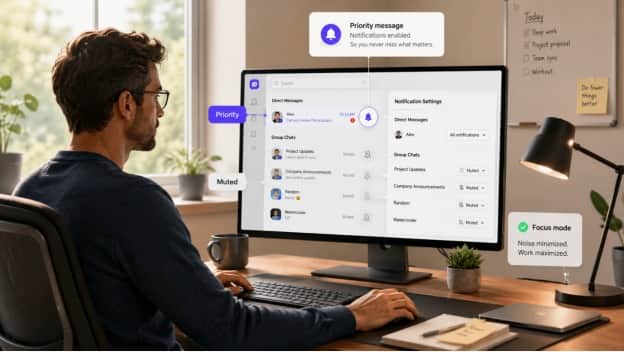
Remote teams depend on messaging software for far more than quick conversations. A desktop messaging app often becomes the place where people share documents, coordinate tasks, review screenshots, discuss product decisions, and respond to urgent issues throughout the workday.
For teams that spend most of their time on Windows laptops or desktop computers, relying only on a mobile messaging app can create unnecessary friction. Constantly switching between a computer and a phone interrupts concentration, makes longer conversations harder to manage, and complicates routine tasks such as downloading files or copying information between applications.
A well-configured Windows messaging client can solve many of these problems. The important part is choosing the right version, installing it carefully, and configuring it so that it supports the team's workflow instead of becoming another source of distractions.
Why Desktop Messaging Still Matters for Remote Teams
Mobile messaging is convenient, but remote work usually happens on a larger screen.
Developers may spend most of the day inside code editors and browsers. Designers might move between design tools, project management platforms, and cloud storage. Founders often have several dashboards and documents open at the same time.
In all of these situations, desktop messaging has several practical advantages.
Faster typing and longer conversations
A physical keyboard makes it much easier to write detailed responses, review long discussions, or explain complicated issues. This becomes especially valuable when a messaging platform is being used for technical support, customer communication, or project coordination.
Easier file handling
Desktop environments are generally better suited to managing documents, screenshots, spreadsheets, archives, and other work files.
Instead of transferring a file to a phone before sharing it, users can usually attach it directly from the folder where they are already working.
Better multitasking
A Windows user can keep a messaging application open next to a browser, project board, document, or other work tool. This makes it easier to reference information while communicating with teammates.
More practical notification control
Desktop notifications can also be easier to manage when configured correctly. Users can mute less important conversations while keeping alerts enabled for critical chats or work-related groups.
For distributed teams, these small workflow improvements can add up over the course of a working day.
Desktop Apps vs. Browser-Based Messaging
Many communication platforms offer both web-based access and native desktop applications. Both can be useful, but they serve slightly different purposes.
A browser version is usually convenient when someone needs temporary access from another computer. There may be nothing to install, and the user can simply sign in through a compatible browser.
A native Windows application, however, is often better suited to everyday use.
more consistent notification behavior;
better integration with local files;
background operation independent of browser tabs;
keyboard shortcuts;
faster access from the Windows taskbar;
more predictable session management.
Browser-based communication can still be useful as a backup option, especially when working from a temporary device. But people who use the same Windows computer every day often benefit from having a dedicated desktop client.
The important question is not whether desktop or web access is universally better. It is which option creates the least friction for the way a particular team actually works.
Check Your Windows Environment Before Downloading
One of the simplest ways to avoid installation problems is to check the computer before downloading anything.
Windows version
First, confirm whether the computer is running Windows 10, Windows 11, or another supported version.
Modern applications increasingly focus on current operating systems, so an older Windows installation may not support every recent release.
System architecture
Users should also know whether the system uses a 64-bit or another supported architecture. Most modern Windows computers are 64-bit, but checking beforehand reduces the chance of downloading an incompatible installer.
Windows system information can usually be found in the operating system's settings.
Available storage
Messaging applications are not normally among the largest programs on a computer, but their storage requirements can grow over time.
Downloaded media, cached images, videos, documents, and other files can occupy much more space than the application itself.
Teams that exchange large amounts of media should therefore pay attention not only to installation size but also to how local storage is managed after installation.
Company device restrictions
People using managed work computers may also encounter administrator restrictions.
software installation;
download locations;
automatic updates;
access to certain communication services.
It is better to understand those restrictions before attempting installation than to troubleshoot them afterward.
Finding the Right Desktop Download
Once the Windows environment has been checked, the next step is selecting the appropriate desktop version.
Users should avoid choosing an installer simply because it appears first in a search result. It is worth checking the page carefully, confirming that the download matches the intended platform, and making sure the information provided is consistent with the version they expect to install.
Chinese-speaking Windows users comparing desktop installation information can review a telegram 电脑版下载 resource as part of that process before deciding which setup approach fits their device.
Regardless of the application being installed, several basic checks are useful:
confirm that the page clearly identifies the Windows version;
check whether system requirements are provided;
avoid unfamiliar modified installers;
verify that the file type is what you expect;
keep the operating system and security software updated.
The goal is not simply to obtain an installer. It is to reduce the possibility of installing an outdated, incompatible, or unexpectedly modified package.
Installing and Signing In on Windows
After downloading the appropriate installer, the setup process is usually straightforward.
Users should read installation prompts instead of automatically clicking through them. If the installer asks for permissions or proposes optional settings, those choices should be understood before being accepted.
Once installation is complete, the application can normally be launched from the Start menu, desktop shortcut, or taskbar.
Account access may involve a phone number, verification code, existing mobile session, QR-based authentication, or another sign-in method depending on the service.
For team members who already use the application on a phone, connecting the desktop client to an existing account is often easier than creating a completely separate workspace.
After signing in, it is worth confirming that conversations, contacts, groups, and other expected data appear correctly before relying on the Windows application for daily work.
Configure Notifications for Focused Work
Installing a messaging app is only the beginning. Poor notification settings can turn a useful communication tool into a constant interruption.
Remote workers should decide which conversations genuinely need immediate attention.
notifications enabled for direct messages;
priority alerts for important project groups;
muted notifications for large social or community chats;
disabled sounds during focused work sessions;
preview settings adjusted for privacy.
The ideal configuration will vary by role.
A customer support worker may need near-instant alerts. A developer working on a complex task may prefer to check messages at scheduled intervals. A founder may want notifications only from a small number of critical conversations.
The key is to configure notifications intentionally rather than accepting every default option.
Organize Files and Downloads
Desktop messaging often becomes part of a team's informal file-sharing workflow.
This can be useful, but it can also create clutter if users do not know where downloaded files are being stored.
After installing a messaging client, check its download and storage settings.
Where are documents saved by default?
Are images and videos downloaded automatically?
Can large media files be excluded from automatic downloads?
How long is cached content stored?
Is there an easy way to clear unnecessary files?
For teams dealing with large quantities of media, these settings can make a significant difference to disk usage.
It is also worth remembering that a messaging application should not necessarily become the permanent archive for important business files. Documents that need structured collaboration, version control, or long-term retention are generally better stored in appropriate cloud or document-management systems.
Messaging is excellent for moving information quickly. It is not always the best place to preserve that information indefinitely.
Keep Desktop and Mobile Workflows Consistent
One of the biggest benefits of desktop messaging is the ability to move between devices without changing communication habits.
Someone may read an urgent message on a phone while away from the desk, then continue the conversation from a Windows computer when they return.
For this workflow to feel seamless, users should confirm that important settings behave consistently across devices.
account synchronization;
active sessions;
notification preferences;
privacy settings;
chat folders or organization features;
media-download behavior.
Some settings may be device-specific, so they should not be assumed to carry over automatically.
Teams can also benefit from documenting basic communication expectations. For example, urgent issues might be sent through direct messages, while general updates go into shared project groups.
Technology works better when the team agrees on how it should be used.
Review Security and Active Sessions
A desktop computer often contains more sensitive work data than a phone, so account security deserves particular attention.
Users should review available security features after signing in.
additional passwords or two-step verification;
active-session management;
device authorization;
login alerts;
automatic session expiration;
local application locks.
It is a good practice to periodically review which devices are signed in and remove sessions that are no longer needed.
This is particularly important for people who have replaced a computer, used a temporary device, or signed in from a shared environment.
Work computers should also use normal operating-system protections such as secure passwords, device encryption where appropriate, and automatic Windows security updates.
Keep the Desktop Client Updated
Desktop applications change over time.
Updates may include compatibility improvements, interface changes, performance fixes, and security patches. Running an old release for long periods can eventually create problems even if the application initially appears to work normally.
Users should understand how updates are delivered.
Some desktop clients update automatically. Others notify the user when a new version becomes available. Managed corporate devices may depend on an administrator to approve updates.
Whatever the method, teams should avoid allowing important communication software to remain permanently outdated. For teams standardizing a Windows-first workflow, Telegram Desktop guidance can also help them compare desktop client options and update requirements.
Updates are also a good opportunity to review settings. A major application release may introduce new notification controls, privacy options, storage behavior, or interface changes.
A Simple Windows Messaging Setup Checklist
A reliable desktop messaging setup does not need to be complicated.
Before using a new Windows client as part of a daily workflow, run through a short checklist:
- Confirm the Windows version and system architecture.
- Check available storage and company installation restrictions.
- Review the download information before installing.
- Use the appropriate Windows installer.
- Sign in and verify that expected account data has synchronized.
- Configure notifications according to work priorities.
- Review download and media-storage settings.
- Check account security and active sessions.
- Enable or regularly apply application updates.
- Test the workflow between desktop and mobile devices.
These steps take relatively little time, but they can prevent many of the problems that make desktop communication frustrating later.
Final Thoughts
Remote teams often focus on which communication platform to use, but the quality of the setup matters almost as much as the choice of software.
A messaging application that is installed correctly, configured for focused work, and integrated into a Windows-based workflow can make everyday communication much smoother.
The best setup is not necessarily the one with the greatest number of features. It is the one that allows team members to communicate without constantly switching devices, searching for files, fighting notification overload, or troubleshooting avoidable installation problems.
For Windows-heavy teams, treating desktop messaging as part of the broader productivity environment—rather than simply as a larger version of a mobile app—can lead to a much more reliable daily workflow.
