
Sheeto
Create printable worksheets with AI for teachers

I’ve been building Sheeto, a web app that helps teachers create printable worksheets through AI chat and a dedicated editor.
After updating the pricing structure, I reviewed the landing page and found two problems:
Pricing was hidden inside a popup
There was no section showing complete examples of what users could create
This update focused on making both easier to discover.
Moving pricing out of a popup
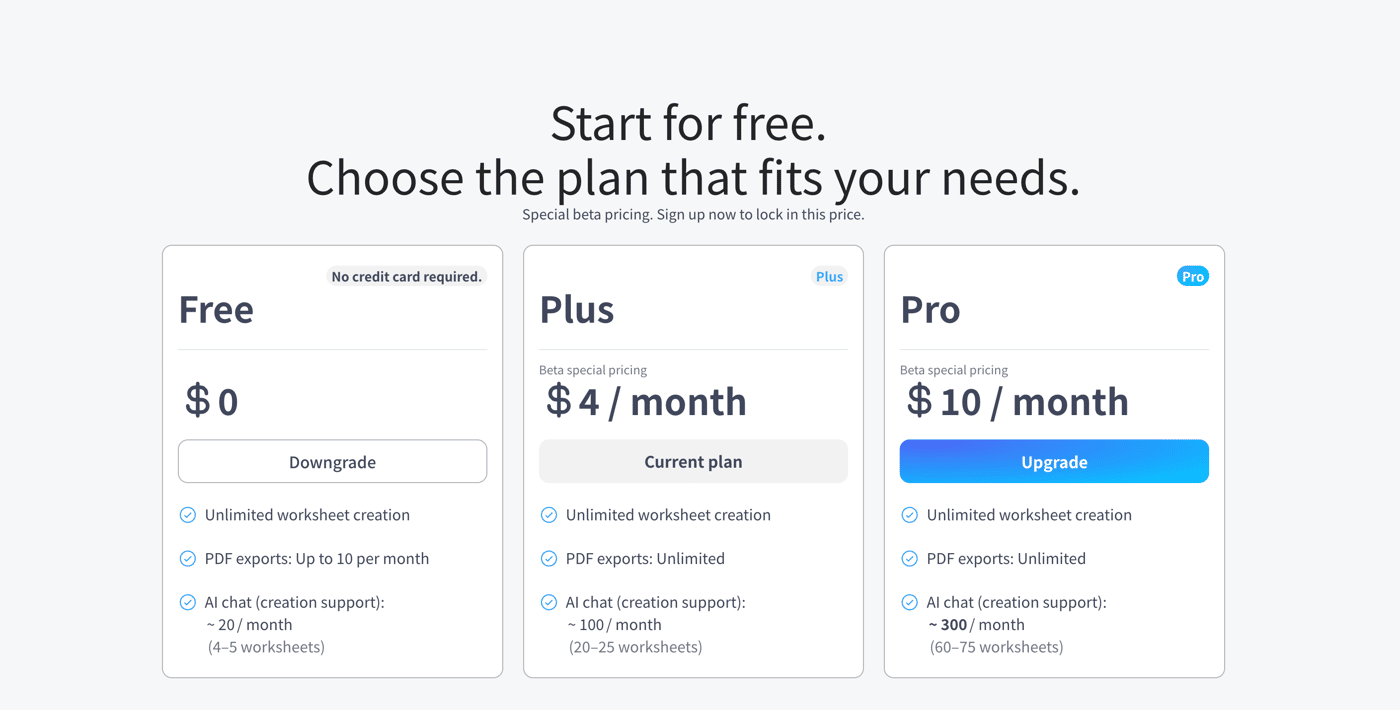
Sheeto’s pricing table was already available on the landing page, but visitors had to click a button to open it in a popup.
The information was there, but users could read the entire page without seeing the plans.
I moved the pricing table into the page itself.
The landing-page flow is now:
Learn what Sheeto does
↓
See worksheet examples
↓
Compare the plans
↓
Read the FAQ
↓
Start for free
The new section shows the Free, Plus and Pro plans side by side.
The main differences are limited to:
Worksheet creation
PDF export limits
Approximate AI chat usage
I also added a Pricing link to the header.
The pricing information did not change significantly. The important change was making it visible at the right point in the page.
Adding a demo section
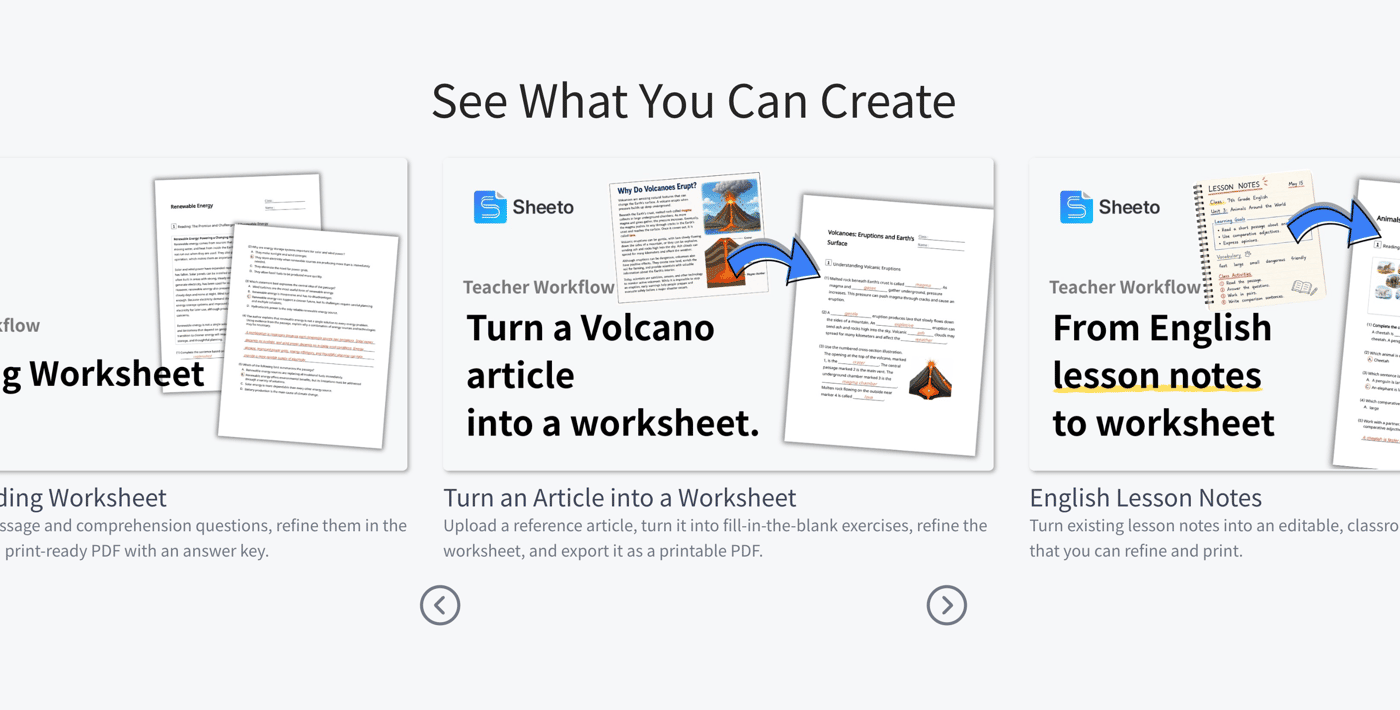
The previous landing page explained Sheeto with screenshots and feature descriptions, but it did not show complete workflows.
I added a new section with seven examples, including:
Creating a reading worksheet
Turning an article into a worksheet
Creating a review worksheet from a textbook page
Generating different difficulty levels
Turning a word list into a vocabulary quiz
The goal was to help teachers recognize their own materials and imagine how they could use Sheeto.
I also added an Examples link to the header.
My first video layout was too busy
My first implementation placed a Bubble Video element in every cell of a horizontal repeating group.
It worked, but each YouTube player displayed its own title, channel name, play button and other controls.
With several videos visible at once, the YouTube interface became more prominent than the worksheet examples.
I replaced the Video elements with static thumbnail images.
Each card now shows only:
A thumbnail
A title
A short description
This made the section much cleaner and avoided displaying multiple YouTube players before the visitor selected a video.
Playing the selected video in a popup
When a visitor clicks a thumbnail, Sheeto now opens one shared video popup.
Each demo stores a YouTube video ID. Bubble passes the selected demo to the popup and loads the corresponding video into a responsive 16:9 player.
This creates a clear separation:
The list helps visitors choose a demo.
The popup lets them focus on one video.
Interestingly, I removed the pricing popup but added a video popup.
Pricing should remain visible while visitors evaluate the product. A video is temporary, focused content that works well in a popup.
Horizontal scrolling without a carousel plugin
I wanted the demo list to work as a horizontal carousel without installing another Bubble plugin.
The repeating group supports swiping and trackpad scrolling. I added previous and next buttons using JavaScript’s scrollBy() method:
repeatingGroup.scrollBy({ left: distance, behavior: "smooth" });
I considered pagination dots, but the number of visible cards changes between desktop and mobile. Keeping the dots synchronized with manual scrolling would add unnecessary complexity.
I kept the interaction simple:
Swipe or scroll
Use the previous and next buttons
Show part of the next card as a visual cue
Current result
The landing page now includes:
A visible pricing section
Free, Plus and Pro comparisons
A new demo section
Seven worksheet workflows
Static video thumbnails
One shared YouTube popup
Horizontal scrolling with navigation buttons
Desktop and mobile layouts
The biggest lesson was that showing more information does not always make a page clearer.
Multiple playable videos technically showed more, but static thumbnails made the examples easier to understand.
This update did not add a new core product feature. It made the existing product easier to evaluate, which is becoming just as important as building the product itself.


Build Report:
I’ve been building Sheeto, a web app for creating printable worksheets through a chat-based editor.
One of the hardest features has been PDF export.
At first, I used an existing PDF plugin. It worked for simple pages, but it became unreliable as the editor grew more complex.
I needed the exported PDF to preserve:
Exact worksheet dimensions
User-selected paper sizes and margins
Images and web fonts
Model answers and handwriting-style text
Object-level page breaks
Multi-page worksheet layouts
Separate answer sheets
The plugin could not reliably reproduce everything shown in the editor, so I started building my own PDF system.
Building page breaks first
Before replacing the PDF exporter, I built a custom page-break system inside the editor.
Each worksheet consists of multiple objects, such as headings, questions, images, answer fields and writing areas.
The editor measures these objects and determines which object should begin the next page. This means page breaks happen between meaningful worksheet objects instead of cutting through their contents.
The resulting page-break positions are saved and reused during PDF generation.
This became important later because calculating page breaks independently in two different browser environments produced inconsistent results.
The editor is now the source of truth for worksheet pagination.
My first Puppeteer approach failed
My first custom implementation sent the worksheet’s generated HTML to a Cloud Run service.
The service opened the HTML in Puppeteer and converted it into a PDF.
The basic pipeline worked, but the actual worksheet did not render consistently.
The exported result could differ because the new browser environment did not automatically inherit everything from the original editor:
Loaded CSS
Web fonts
Images
Runtime DOM changes
Computed layout
Dynamically rendered answers
I realized that “sending the HTML” was not the same as “reproducing the editor.”
I temporarily abandoned the Puppeteer approach and considered using the browser’s native print function instead.
The change that made it work
Before moving on, I tried one more approach.
Instead of sending isolated HTML to Puppeteer, the Cloud Run service now opens the actual Sheeto editor in an authorized session.
Inside that real application page, it waits for the worksheet to finish rendering and then runs the same export logic used by the editor.
The new flow is roughly:
User requests a PDF ↓ A backend workflow starts the job ↓ Cloud Run launches Puppeteer ↓ Puppeteer opens the actual editor ↓ The editor restores the requested worksheet view ↓ Dynamic content, fonts and images finish loading ↓ The editor builds a PDF-only DOM clone ↓ Saved page-break information is applied ↓ Puppeteer generates the PDF ↓ The completed file is downloaded automatically
This avoided rebuilding the application’s visual state from raw HTML.
The existing editor became part of the rendering engine.
Waiting for the page to be truly ready
Another issue was that a page could appear loaded while parts of the worksheet were still being generated.
For example, the first PDF attempt sometimes omitted:
Correct-answer circles
Writing lines
Model answers
Parsed fill-in-the-blank answers
Running the export a second time often worked, which showed that this was a timing problem.
I added explicit readiness checks for dynamically generated content. PDF generation now waits for the required answer elements, fonts and layout calculations to finish before cloning the page.
One useful lesson was:
“The page has loaded” and “the page is ready to print” are not the same state.
Adding answer-sheet export
The worksheet and answer sheet use different layouts.
The worksheet follows page breaks selected in the editor. The answer sheet arranges answers more compactly and can place multiple answer objects on the same row.
I therefore added a separate answer-sheet pagination process that:
Measures the rendered answer objects
Groups objects that share the same visual row
Keeps section headings with their content
Calculates page breaks using the selected paper size
Creates a PDF clone specifically for the answer sheet
The Cloud Run service can now generate either view using the same endpoint.
Improving the export experience
PDF generation can take several seconds, especially when Cloud Run starts a new instance.
To make the delay feel intentional, I added a progress UI in Bubble. The progress slows down near completion instead of moving at a perfectly fixed rate, but it never claims the file is complete until the backend actually finishes.
The current experience is:
Click PDF
See which document is being prepared
Watch the progress indicator
Automatically download the finished file
Worksheet PDFs and answer-sheet PDFs are stored separately, and an older generated file is removed only after its replacement has been saved successfully.
Current result
The custom pipeline now supports:
Cloud Run + Puppeteer PDF generation
Object-aware page breaks
A4 and Letter paper sizes
Configurable worksheet margins
Dedicated answer-sheet margins
Images, backgrounds and web fonts
Dynamically generated model answers
Separate worksheet and answer-sheet files
Automatic download
Progress feedback
Previous-file cleanup
There are still occasional layout inconsistencies in the answer-sheet export. For now, I’ve accepted that as a known limitation.
In the longer term, I may restructure the answer sheet so that it uses exactly the same page-based rendering model as the worksheet. That should make both exports even more consistent.
What I learned
The biggest lesson was that the first failed approach was not proof that Puppeteer could not work.
The real problem was the boundary I had chosen.
Trying to reconstruct the editor from exported HTML was fragile. Opening the real application and reusing its existing rendering logic was much more reliable.
I also learned that duplicating layout calculations across environments creates unnecessary instability. Having one source of truth for pagination made the system easier to reason about.
This feature took several iterations and, at one point, I had almost given up on fully automated PDF generation.
It is now working well enough to become a real part of Sheeto.
The next step is to separate the staging and production PDF services so I can continue improving the renderer without affecting live users.

When people think about creating worksheets, they often imagine writing questions.
But as a teacher, I found that was only a small part of the work.
A lot of time was spent on:
adjusting layouts
creating answer sheets
balancing difficulty levels
rewriting questions for different students
making materials ready to use in class
This made me realize something:
The challenge isn't just generating content.
AI can create questions in seconds, but teachers still need to review, adjust, and shape those materials for their students.
That's why I didn't want to build a tool that simply generates worksheets and stops there.
The editing experience matters.
Teachers need to easily modify, refine, and make the material their own.
The goal isn't replacing teacher decisions.
It's removing repetitive work so teachers can spend more time on the parts that require their expertise.
Building AI products has made me realize that the hardest question is not "What can AI do?"
It's "What should AI do, and what should remain with humans?"
How are you thinking about this in your products?

Hi everyone!
I’m Tomohisa, a former middle school English teacher from Japan.
During my years teaching, I loved using technology in the classroom. But I also realized something:
Paper worksheets and tests still have a lot of value.
Students can think while writing, review materials at a glance, and use them anywhere without worrying about devices.
The problem was creating those materials.
Teachers spend countless hours creating worksheets — writing questions, formatting layouts, making answer sheets, adjusting difficulty levels, and preparing different versions.
I kept wondering:
“Why does creating teaching materials take so much time?”
So I started building Sheeto.
Sheeto is an AI-powered worksheet creator that helps teachers create printable worksheets through conversation with AI.
You can:
Generate worksheets from your ideas or reference materials
Create multiple-choice, fill-in-the-blank, and written response questions
Edit each part easily
Export classroom-ready PDFs
I’m currently building Sheeto as a solo founder and sharing the journey here.
I’d love to hear from teachers, educators, and anyone interested in AI tools for education.
What parts of creating teaching materials take the most time for you?
-
2
Coming from teaching, you're solving a problem you've experienced instead of one you've imagined.
That doesn't guarantee product-market fit, but it usually leads to much better questions about what actually deserves to be automated.
-
1
Thanks, I appreciate that perspective.
That’s exactly the problem I’m trying to explore. As a teacher, I felt there was a lot of “invisible work” around creating materials beyond just writing questions.
Still figuring out what should and shouldn’t be automated, but conversations with educators are helping me shape the product.
-
1
Thanks for sharing that. I'd enjoy continuing the conversation outside the thread if you're open to it. What's the best email to reach you on?
-
1
Thanks for sharing your thoughts.
I agree that building from personal experience helps identify problems worth solving.
I'm still learning from conversations with teachers and educators as I develop Sheeto.-
1
I appreciate you sharing that.
I'd still prefer to continue this by email rather than over a long comment thread. If you're open to it, what's the best email to reach you on?
-
-
-
-

Comment